Tuesday, April 29, 2008

How to Execute a SQL Query using iReport.


Click Data --> Report Query. The Following window will appear

Type the SQL Query you want. To pass Parameters user $P{PARAMENTER_NAME} (in iReport 2.0 or higher). You can click the “Automatically Retrieve Fields” check box to retrieve the fields.

Keep in mind if there’s an SQL error the fields will not be retrieved and the SQL error will be displayed.

You can also select the fields you want from a Database Model and generate the Query automatically. I DO NOT recommend this. Although you can set the conditions before hand I always find it reliable when I have a working Query in my hands. It’s always better to know that the query works. So create the query using SQL Navigator or a similar tool using sample data for “Parameters” and use that query.

Click OK after Fields are retrieved.

Sunday, April 27, 2008

How to Connect to a Database Or a Data Source using iReport

To connect to a data source using iReport you need to configure the Data source. To do that go to Dataà Connection/Data Sources From the Main Menu items.

You would get the Connection/Data Sources Window. Click “New”
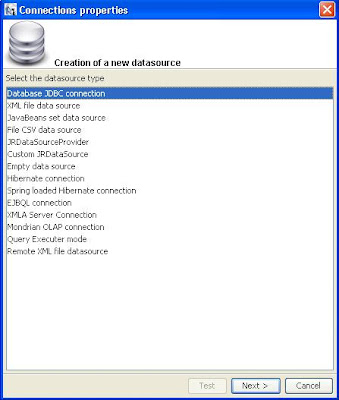
Most of the time you would be using a JDBC data source or a Hibernate Connection. For the sake of the first report we will look at the much simpler and common way of using a JDBC connection. To configure a JDBC connection click “JDBC Connection” and click “Next”
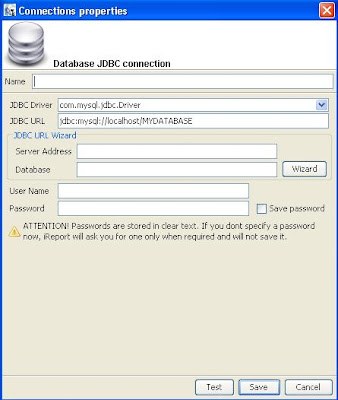
To connect to a MySQL or a Oracle Database first you need to define a Driver. While iReport comes with a lot of dirvers it for some strange reason does not include an Oracle Driver.

Connecting to MySQL

Set your server path and data base name in the JDBC URL Wizard. Then Click Wizard and it will automatically set your JDBC URL. Make Sure you have selected the com.mysql.jdbc.Driver and Type the User name and password to the database and click Test.

Your Data base connection should be working properly. If not check your MySQL database URL is correct or/and the database server is running properly. If the test is Successful click Save.

Connecting to Oracle Database.

As I mentioned above iReport does not have a Oracle JDBC driver included. To Connect to Oracle you need to have a Oracle JDBC Driver compliant with your Oracle Version. They can be found here. I’ve used ojdbc14.jar with Oracle 9i and 10i.

Place the Oracle JDBC Driver in your lib directory. If you have installed using the default settings this would be in the c:/Programfiles/jaspersoft/ireport2.0.5 directory

Set your Server Path and the database name in the JDBC URL wizard. Then click “Wizard” button and the Database URL would be set WITH THE PORT 1521. If you are not using that simply modify it to the port u are using in the JDBC URL Field. Type the User name and password to the database.

Set the JDBC Driver Field to “oracle.jdbc.driver.OracleDriver” and click test. If not successful check your username/password and Database URL and Try again. After the test is successful click Save.

Now you are ready to start designing a report.

UPDATE on 08 Dec 2010

A Better Example Through Comments (@author prakash)

Steps to set the Classpath for iReport:
1) go to "Tools / Options" menu and select iReport
2) verify that database JDBC driver is present:
- Choose "Classpath" tab
- Click "Add JAR" and then locate the mysql.jdbc.Driver
- Click "OK"
3) click "Connections / Datasources" icon in toolbar
5) click "New" and set up a "Database JDBC Connection" using driver from step 2
6) click "Test" to verify the data source works correctly
7) click "Save" to save the data source


Saturday, April 26, 2008

Creating a New Report Using iReport


The Basics.

Click File à New Document (or Ctrl+N). You will get the following window.

example 1.JPGThis goes without saying as self explanatory. Give the name you want for the report. But There is one Major thing you want to remember.

When No Data is present Display the Static Text.

Most designers would require the report to display header information (static text such as Report Title, date) when there is no data to display. The report does not have these properties set by default. To do that you need to set the Right Option in the “More” Tab in the report creation window.

example2.JPGThis can be set by a Java code too. But that’s another topic altogether. I find after developing a lot of reports I forget have always forgotten to set this option. And had to go back and set it.

The iReport Golden Rules


When In doubt go to JasperForge Forum.

Google and blogs like these are a lot of help, But there the community is larger and more likely that you’ll get a response from some of the Admins if your problem is really complicated.

See the iReport Examples.

They are a must have when you are using iReport. Your simple questions can be answered by looking at the examples which would save you a lot of time

Talk to the community, Help Others.

Mainly at the JasperForge forum. The same problems are posted over and over because people has slightly different variations of the same problem

Experiment.

There’s a lot of things to learn about iReport. The chances are that you may find some things very interesting

Friday, April 25, 2008

Starting Up

After working close to 6 months in developing reports using iReport with minimum or no guidance I decided to share my finding with the rest of the world.

If you want to download iReport go to SourceForge.